Keep your cooling system healthy: the EVGA CLC 120 cooler is a solid choice, but units can show performance drop after about 3.5 years of continuous use. Early signs help you act before serious failure or damage to core parts.
For example, users running an Intel i5 7600k overclocked to 4.6GHz may see idle coolant temperature creep from 31–32°C up to 34–35°C. That subtle rise often marks a developing issue and is worth tracking.
Use monitoring software like the EVGA Flow Control tool to watch trends and spot a pump problem early. Regular checks protect your CPU and other sensitive hardware components.
Acting fast when you notice changes can preserve a stable overclock and avoid a sudden system outage.
Key Takeaways
- EVGA CLC 120 units may degrade after ~3.5 years of continuous service.
- Small idle temp increases on an overclocked i5 7600k can signal trouble.
- Monitoring software reveals coolant trends that point to pump failure.
- Regular hardware checks prevent minor issues from becoming major failures.
- Early action helps protect your CPU and extend cooler life.
Identifying Common Failing AIO Pump Symptoms
Detecting early trouble with your cooler starts with listening and watching for odd behavior. A 240–360mm unit should keep modern cpus within safe limits when the system is healthy. If it does not, quick checks can save your processor from heat damage.
Audible Signs of Pump Stress
One clear sign is a loud, harsh buzzing or rattling coming from the pump housing. A steady vibration is normal, but grinding or sharp noises point to mechanical failure.
Temperature Spikes and Performance Degradation
If your cpu cannot boost above base clock without hitting critical temperature limits, liquid flow may be impaired. Rapid temperature jumps during tasks that used to run cool are a strong indication of trouble.
- A healthy 240–360mm cooler keeps most modern cpus stable under load.
- Listen for grinding; it often precedes full pump failure.
- Spotting these early signs helps avoid thermal throttling and long-term damage.
Diagnostic Techniques for Hardware Monitoring
Start diagnostics by checking both BIOS and monitoring tools to confirm the cooler’s reported activity.
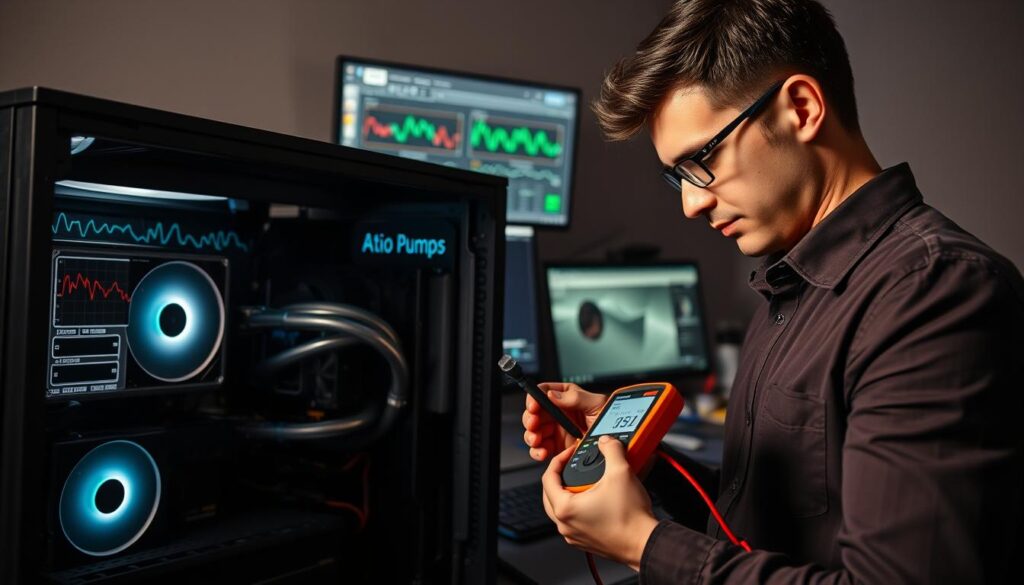
First, view the RPM readout in BIOS and in your chosen monitoring software. If RPM numbers are lower than expected, that is an early sign you need to investigate. Compare both sources to rule out a reporting issue.
For models with a transparent window, like the Alphacool Eisbaer, a quick visual check can confirm liquid motion. You can also lightly touch the housing to feel for steady vibration. These simple actions help distinguish a software error from real mechanical trouble.
- Check BIOS RPM and cross-check with monitoring software.
- If software shows no RPM data, treat it as a strong sign of total unit failure.
- Visually inspect units with a window to see flow; feel the housing for vibration.
- Verify power connections before assuming the cooler is broken.
“Consistent, cross-checked monitoring makes it easy to spot real hardware issues instead of chasing false alerts.”
| Indicator | Typical Reading | What it Suggests |
|---|---|---|
| BIOS RPM | Normal value per spec | Hardware active |
| Monitoring software RPM | Matches BIOS | No reporting error |
| Visual flow (window) | Continuous movement | Liquid circulation OK |
| Housing vibration | Steady but not harsh | Mechanical parts moving |
| Zero RPM | 0 | Check power; likely failure if still zero |
Modern cpus depend on accurate thermal data from cooling hardware to adjust clocks and voltage. Regular checks help protect your system and keep overclocks stable.
Inspecting Your Cooler for Coolant Leaks
Inspect the radiator and fittings under bright light; even a hairline escape of coolant will show up as sheen or residue.
Start with the radiator fins and tubing connections. Look for damp spots, crusted residue, or tiny beads of liquid. These are a clear sign that the unit needs attention.
Check how the radiator is mounted. Do not place the pump at the highest point in the loop. That orientation can trap air and hurt long‑term performance.
Proper installation matters. A correctly positioned radiator keeps air out of the pump and extends the cooler’s life. Also confirm mounting points so the radiator weight does not stress the CPU block.
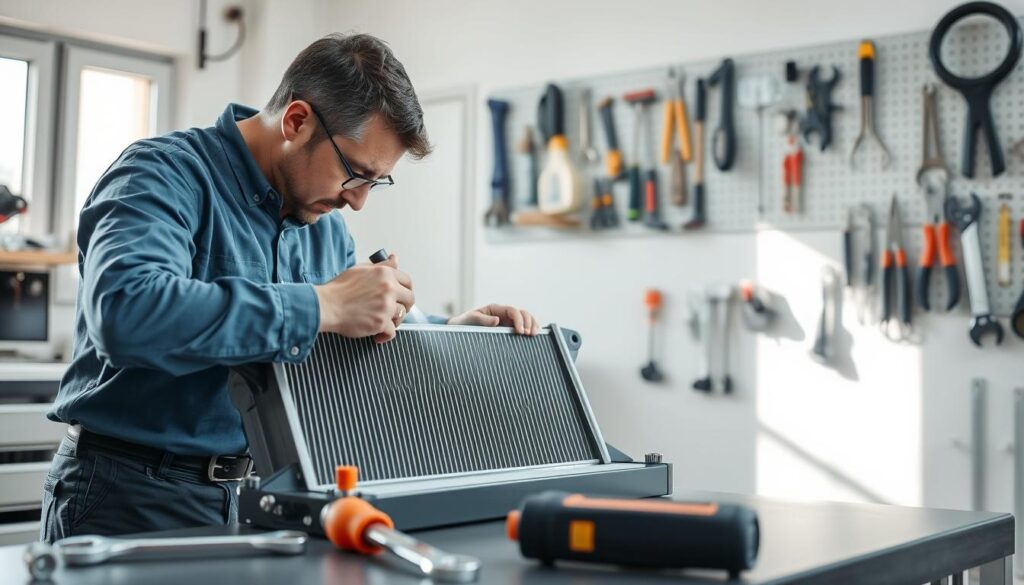
Quick checklist
- Scan radiator seams and fins for moisture or residue.
- Inspect tubing clamps and hose junctions for leaks.
- Ensure the pump is not the highest point to avoid trapped air.
- Verify radiator mounts do not pull on the CPU block.
“Finding liquid on the radiator usually means the unit has reached the end of its usable life.”
Conclusion and Replacement Considerations
Confirmed mechanical faults in a liquid cooler usually mean it’s time to shop for a replacement.
If you confirm a pump failure, a full replacement restores reliable cooling and protects your CPU from overheating and permanent damage.
If the unit is leaking, replace it immediately to avoid liquid contacting other components and causing electrical failure.
Replacement can be an unexpected cost, but it is a standard part of PC maintenance for aging systems. Planning ahead saves downtime.
For help choosing a reliable model, check community resources like the CGDirector Forum and user reviews before you buy.
FAQ
What are the most common signs of a failing AIO pump and how can I spot a coolant leak?
Look for rising CPU temps under light loads, unusual vibration from the cooler block, and audible whining or gurgling from the loop. Check for wet spots, discolored spots, or crusty residue around fittings, tubing, and the radiator. Also feel the tubing—if it’s warm near the block but the radiator stays cool, the loop may not be circulating correctly, indicating a potential leak or internal blockage.
How can I tell if the pump motor is under stress by sound alone?
Listen for high-pitched whines, rattles, or inconsistent humming that changes with case orientation. A healthy unit runs with a steady, low hum. If sound varies when you tilt the case or if you hear air-moving noises from the block, the pump may be struggling or trapped air may indicate a compromised loop.
Why does my CPU temperature spike suddenly even when the fan speeds look normal?
Sudden temperature jumps often happen when flow drops. The block can’t transfer heat without proper circulation, so temps rise despite normal fan RPM. Check pump speed in your motherboard or cooler app, verify radiator airflow, and ensure tubing isn’t kinked or crushed.
What software tools should I use to monitor pump and CPU health?
Use motherboard utilities like ASUS AI Suite, MSI Dragon Center, or Gigabyte SIV, and hardware monitors such as HWMonitor, HWiNFO, or Corsair iCUE for Corsair coolers. These tools show pump RPM, coolant temp (if supported), and CPU core temps so you can correlate drops in flow with thermal events.
How do I perform a hardware diagnosis to confirm pump failure without removing the cooler?
Check pump RPM and power in BIOS or software, watch temperature trends during an idle-to-load test, and listen closely for abnormal noises. Pause fans temporarily (while watching temps) to isolate whether temps follow fan speed or pump activity. If software shows zero or erratic pump RPM, that’s a strong indicator of malfunction.
How should I inspect the cooler for coolant leaks safely?
Power down the system and unplug it. Visually inspect fittings, tubing joins, and radiator seams for wetness or residue. Use a paper towel to blot suspected areas. Avoid running the system with visible leaks; small drips can short components. If you find a leak, isolate the machine and consider a replacement unit or RMA.
Does mounting orientation affect leak risk or pump function?
Yes. Mounting the pump head with ports at extreme angles can trap air near the impeller, reducing flow and increasing noise. Many manufacturers recommend the pump’s inlet/outlet align horizontally or with the fill port slightly upward to minimize air pockets and reduce stress on fittings.
When should I replace the cooler instead of attempting a repair?
Replace the cooler if you find persistent flow issues, internal corrosion, visible leaks, or if the manufacturer’s diagnostics show pump failure. Many sealed liquid coolers aren’t serviceable; repair attempts can void warranty. If the unit is under warranty, contact the brand (Corsair, NZXT, Cooler Master, etc.) for RMA instructions.
Can a failing cooler damage my CPU and how quickly can that happen?
Yes. A compromised loop can allow CPU temps to climb quickly under load, leading to thermal throttling and, in extreme cases, automatic shutdowns to prevent damage. Modern CPUs have safeguards, but sustained high temps can shorten component lifespan. Act promptly on abnormal thermal behavior.
What preventive steps reduce the chance of leaks and pump issues?
Ensure secure, but not over-tightened, fittings; route tubing to avoid kinks; keep the radiator free of dust; and use manufacturer-recommended mounting positions. Periodically check for residue and monitor pump RPM in software. Good airflow and clean fans help the radiator do its job, reducing stress on the loop.